
Overview Tab
The Overview tab gives you an at-a-glance view of the status of every Job.
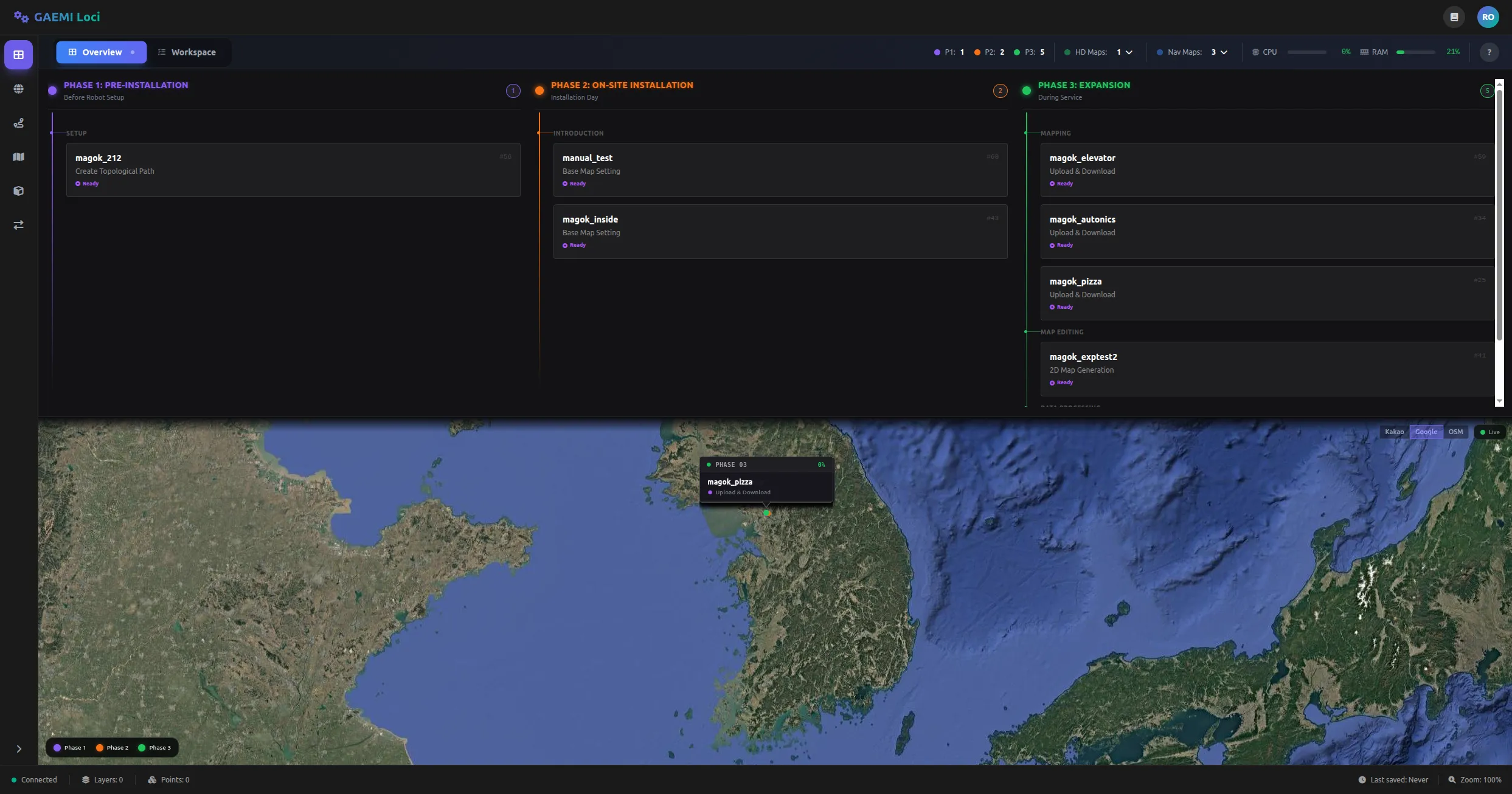
Screen Layout
- Top — Job list: All Jobs are grouped by the Phase they are currently in.
- The list is split into three columns: Phase 1 (PRE-INSTALLATION), Phase 2 (ON-SITE INSTALLATION), and Phase 3 (AREA EXPANSION).
- Each Job card shows the name of the Step currently in progress so you can check work status at a glance.
- Bottom — Map view: The service area location of each Job is shown as a marker on a world map.
- You can also click a marker on the map to select the corresponding Job.
Selecting a Job
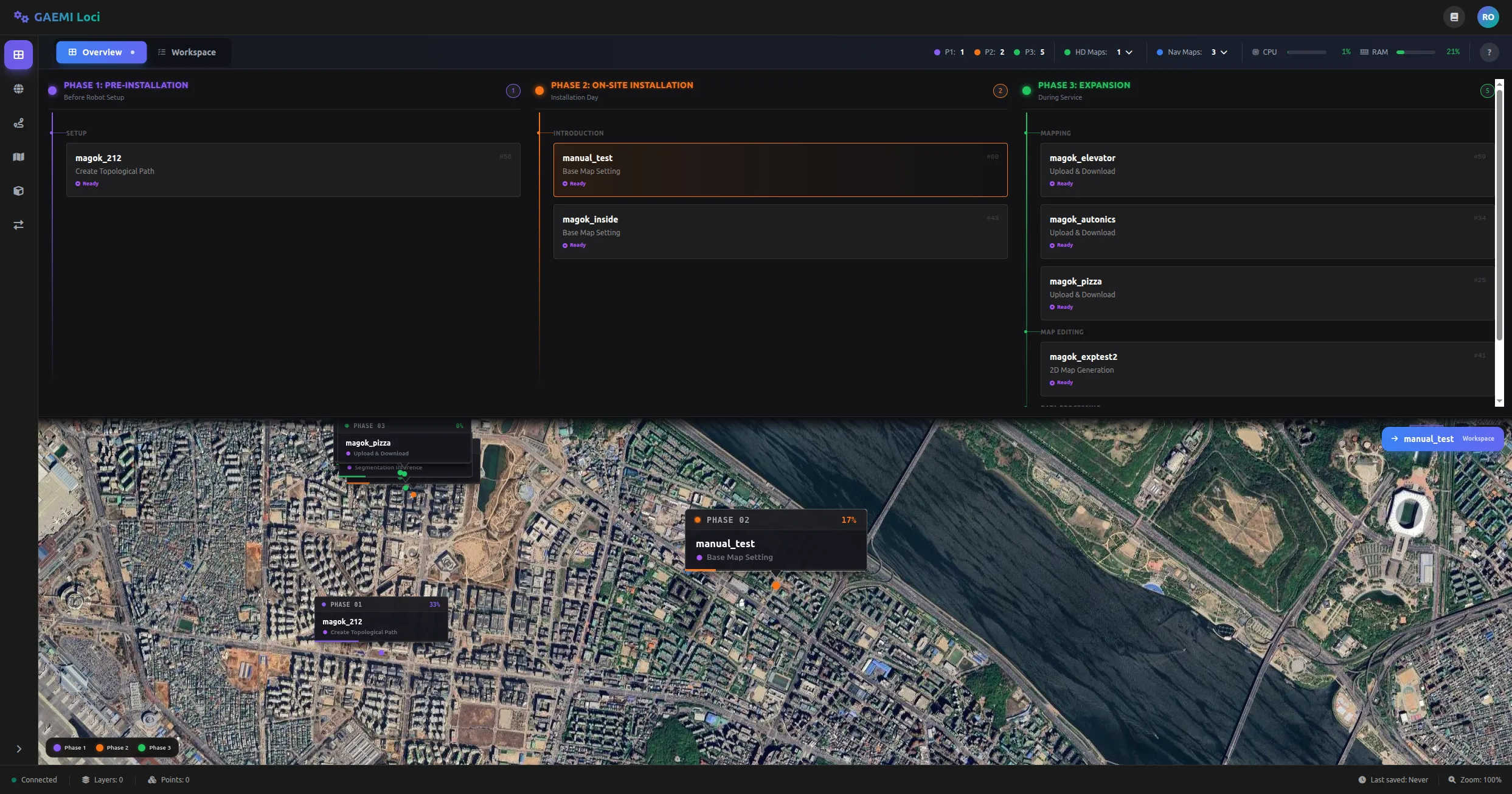
When you select a Job by clicking its card or map marker:
- The map automatically zooms into the corresponding service area.
- A button for navigating to the Workspace tab of the selected Job appears.