
Dashboard
Create map generation Jobs and review the progress of each stage at a glance.
The GAEMI Loci screen consists of a sidebar, top tabs, a main editing area, and a bottom status bar.

Switch between the two dashboard view modes: Overview and Workspace.

Monitor system status in real time.
| Item | Description |
|---|---|
| P1 / P2 / P3 | Number of Jobs in each Phase (color-coded by Phase) |
| HD Maps / Nav Maps | Number of generated maps |
| CPU / RAM | Server resource usage (visualized as gauge bars) |
GAEMI Loci provides dedicated editing tools tailored to each stage of HD map generation.
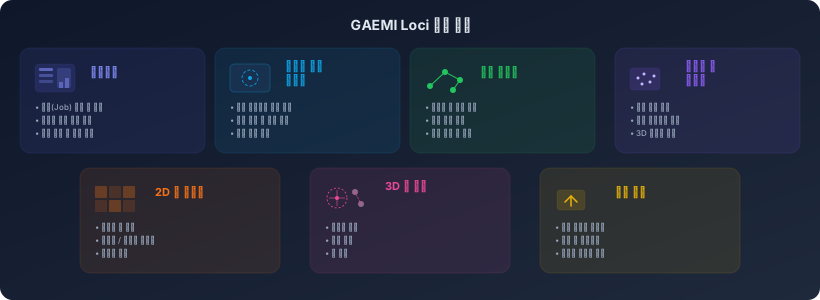
Dashboard
Create map generation Jobs and review the progress of each stage at a glance.
Service Area Editor
Define and register the service area where the robot will operate on a satellite map. Supports address search and location selection.
Navigation Editor
Edit the driving paths that the robot will follow. You can add or modify waypoints (nodes) and segments (edges).
Base Map Editor
Review the 3D data collected in the field and register charging stations and ground control points.
3D Map Editor / Map Correction
Improve map accuracy with tools for ground control point alignment, path correction, map merging, and obstacle map editing.
File Management
Upload mapping data or download completed map files.
Different tools in GAEMI Loci are used depending on your role.
| Role | Responsibilities | Primary Tools |
|---|---|---|
| Biz & Ops | Service area registration and workflow management | Dashboard, Service Area Editor |
| Path Editor | Authoring and editing robot driving paths | Navigation Editor |
| Map Editor | Map editing and quality refinement | Base Map Editor, 3D Map Editor / Map Correction |
| Inspector | Map quality inspection and approval | Base Map Editor |