
Workspace Tab
The Workspace tab is where you manage the detailed workflow of the selected Job. The Job list is shown on the left, and the Step cards for each Phase are shown on the right.
Phase 1 — Setup (Pre-installation)
In Phase 1, you define the service area and then create and review the robot path before visiting the site.
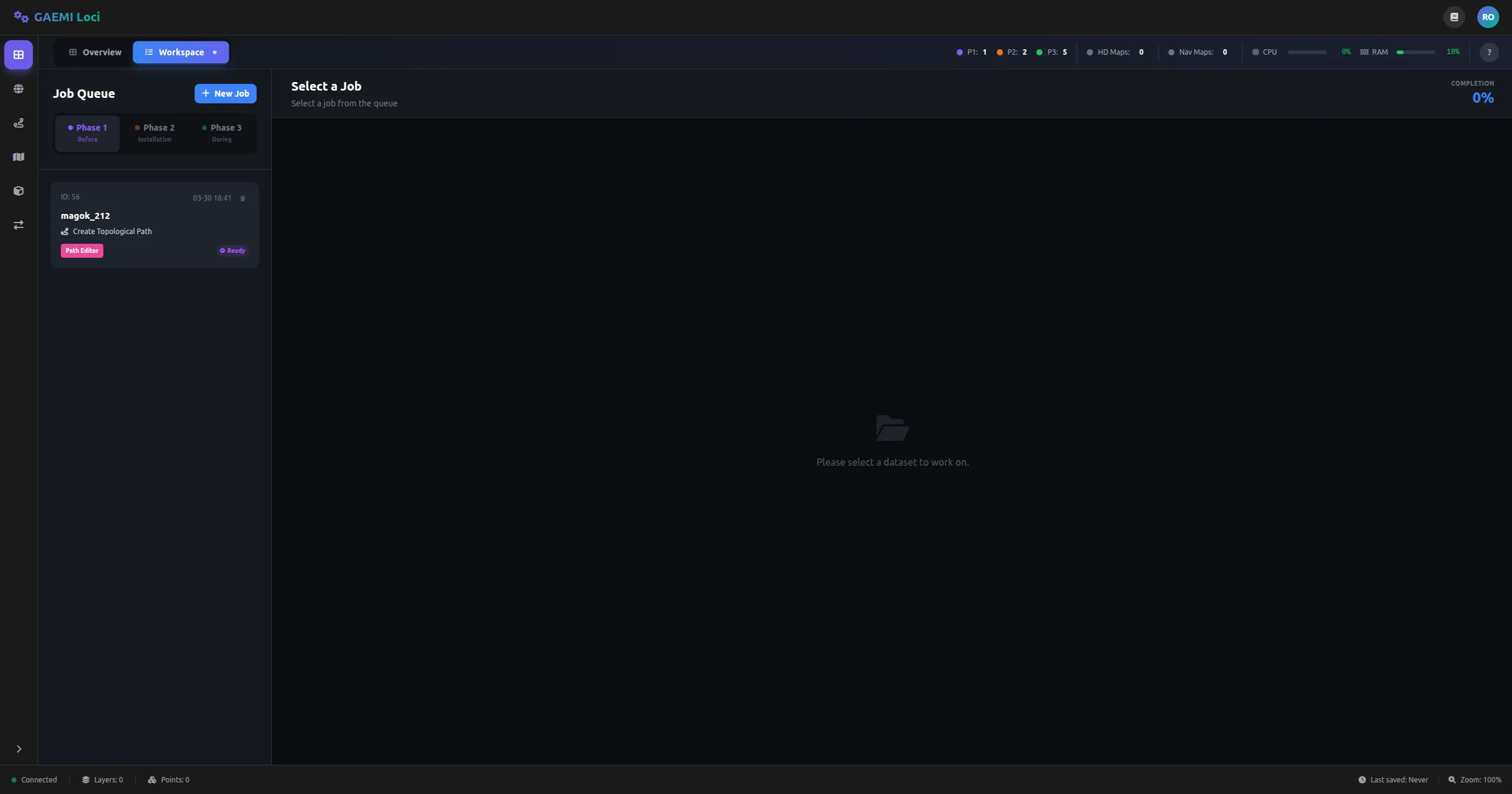
- Left — Job Queue: Lists the Jobs that have been created. Click the New Job button at the top to create a new Job.
- Right — Step area: When no Job is selected, a “Select a Job” message is shown.
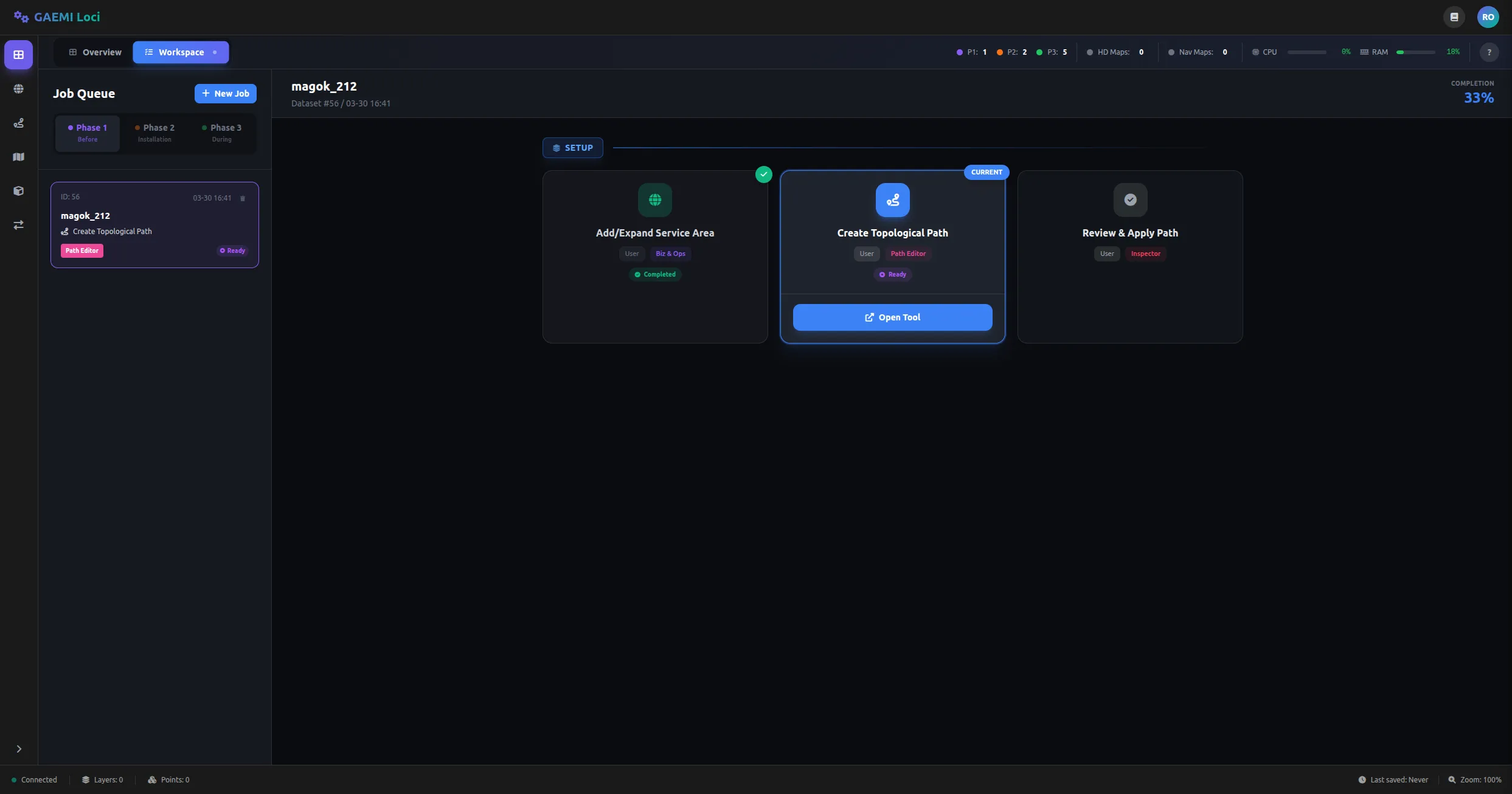
Once a Job is selected, the three Phase 1 Steps are shown as cards:
- Add/Expand Service Area: Register or expand a service area. Doc, Action, and Complete states are shown for each sub-step.
- Create Topological Path: Create the robot’s driving path. Click the Open Tool button to launch the Path Editor.
- Review & Apply Path: Review the created path and apply it.
Phase 2 — On-site Installation
In Phase 2, you collect mapping data on-site and run the data processing and map generation pipeline.
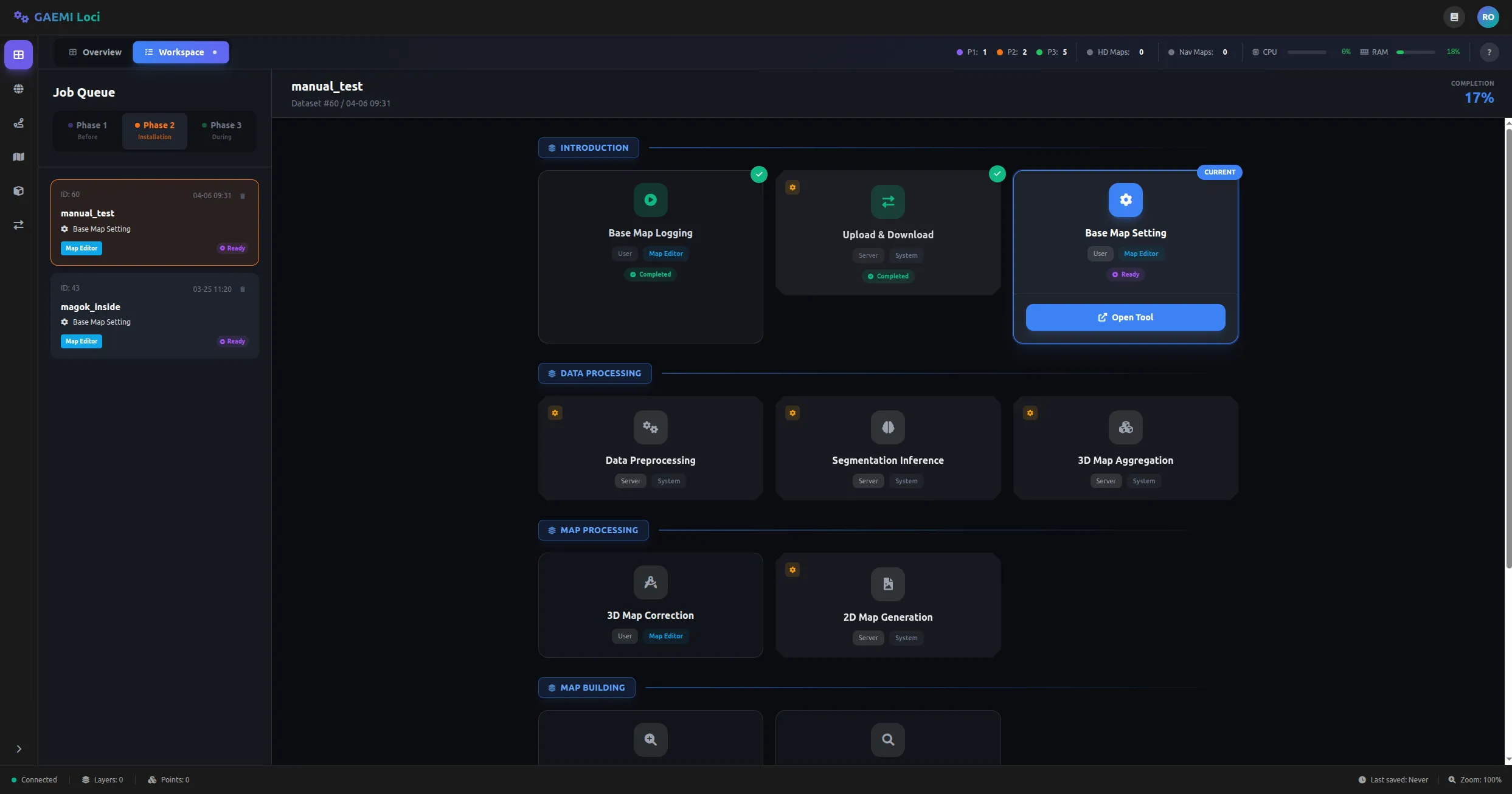
The Steps in Phase 2 are grouped into four categories:
- Introduction: Handles mapping data collection and initial setup.
- Base Map Logging, Upload & Download, Base Map Setting
- Data Processing: The server-automated stage that processes the collected data.
- Data Preprocessing, Segmentation Inference, 3D Map Aggregation
- Map Processing: Refines the generated map and produces the 2D map.
- 3D Map Correction, 2D Map Generation
- Map Building: Assembles and reviews the final map.
Each Step card shows its current status (in progress, complete, etc.), and you can launch the corresponding tool directly from the Open Tool button.
Phase 3 — Area Expansion
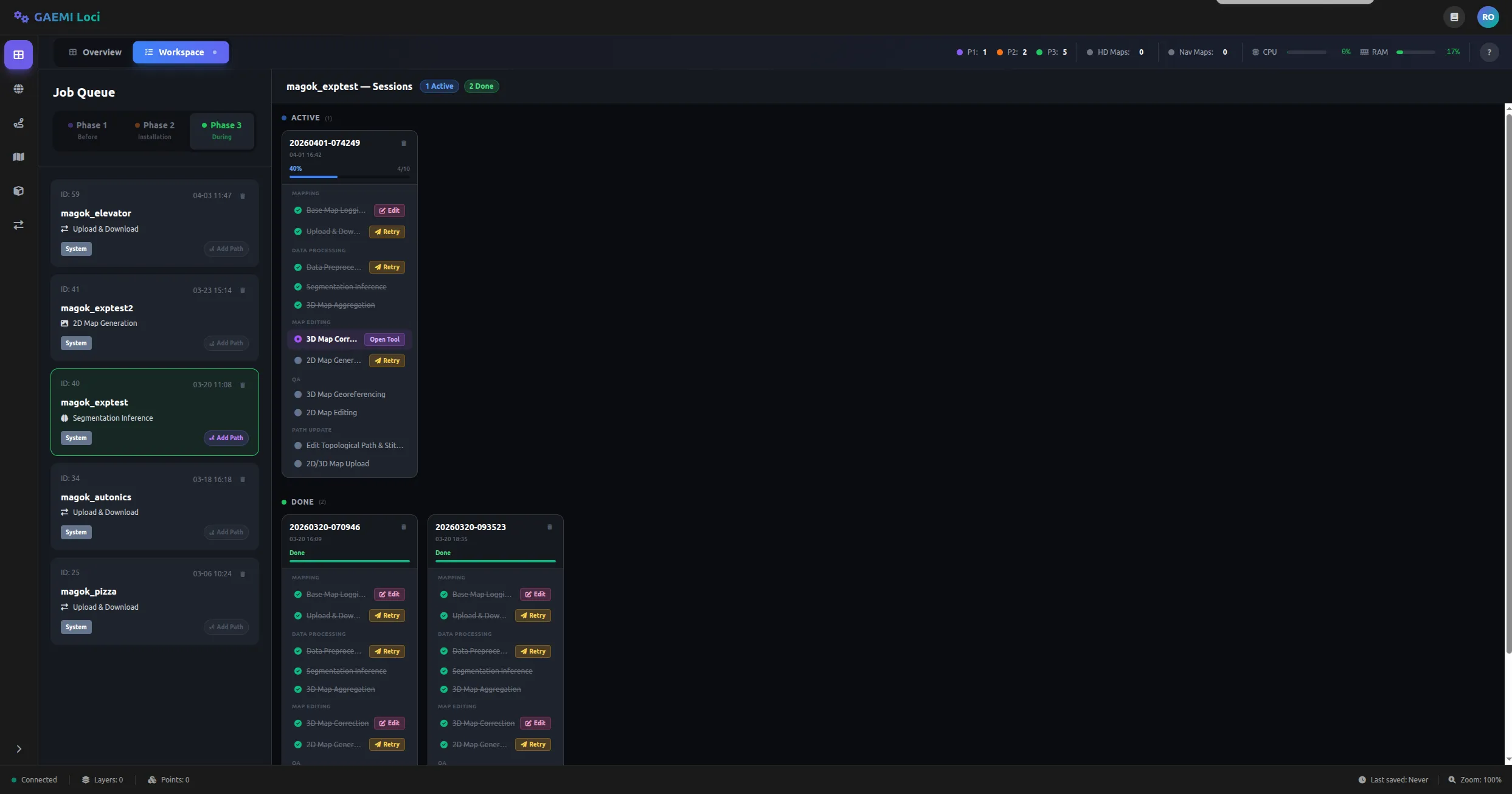
In Phase 3, you add new areas to an existing map. This stage is managed as sessions, and you can add multiple sessions to expand the map iteratively.
Session Management
The Phase 3 screen is divided into two sections:
- Active: Shows sessions currently in progress. Each session card lists the included Steps and their progress.
- Done: Shows completed sessions.
Each session card supports the following actions:
- Edit: Modify the session’s contents.
- Retry: Retry a failed Step.