
Georeferencing
Georeferencing is the process of aligning a SLAM-generated local coordinate map with the real-world GPS coordinate system. This work is performed in the Georeference tab of the 3D Map Editor.
Screen Layout
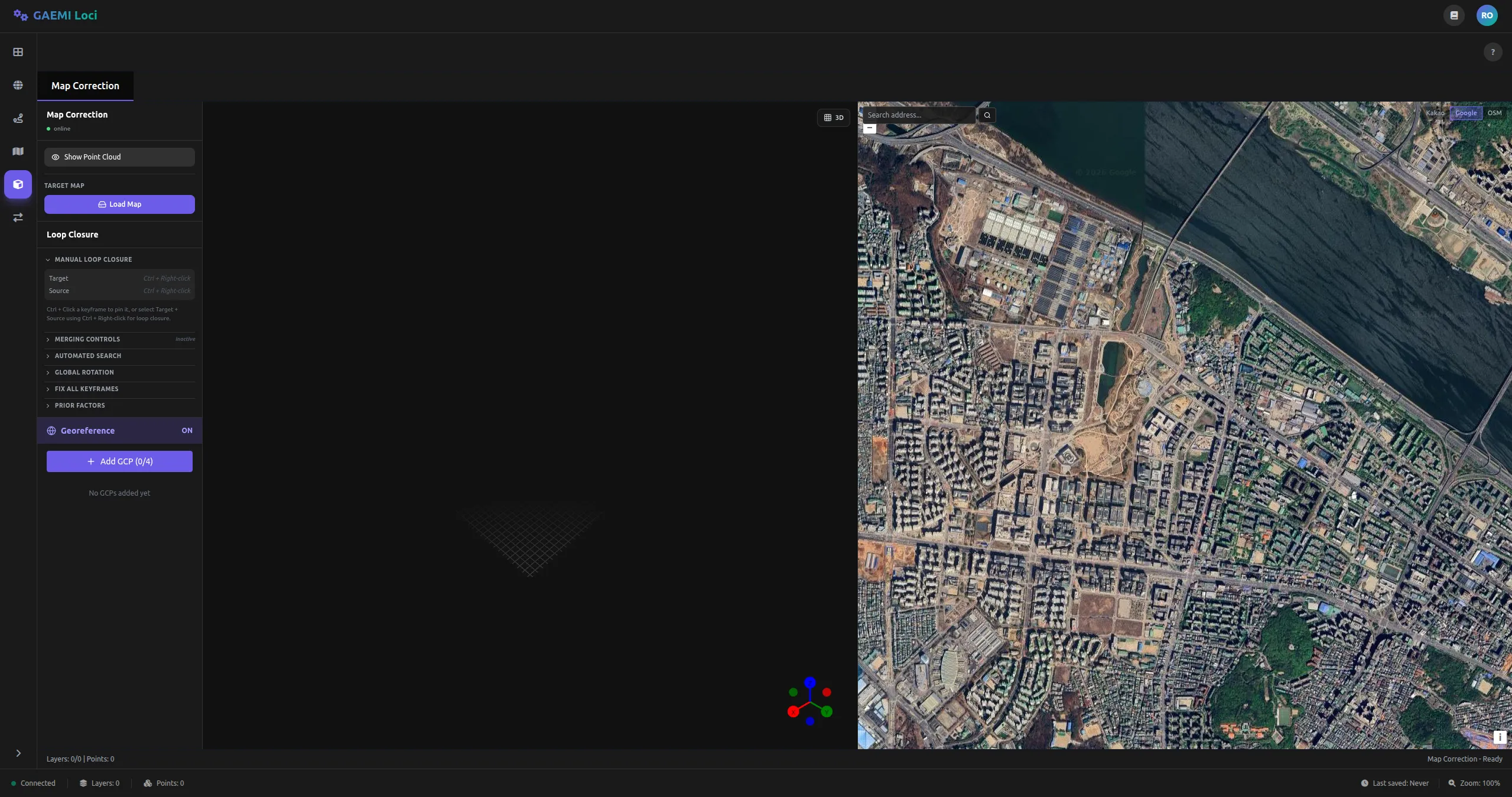
- Left: 3D point cloud viewport + left-side panel (GeoreferencePanel)
- Right: Satellite map — shown as a split view when georeferencing mode is active
Workflow
The full flow, from adding GCPs to calculating the transformation:
-
Click the Add GCP button to enter GCP-adding mode.
- The button displays the current number of GCPs:
Add GCP (0/4). - When this mode is active, the button changes to Stop (0/4).
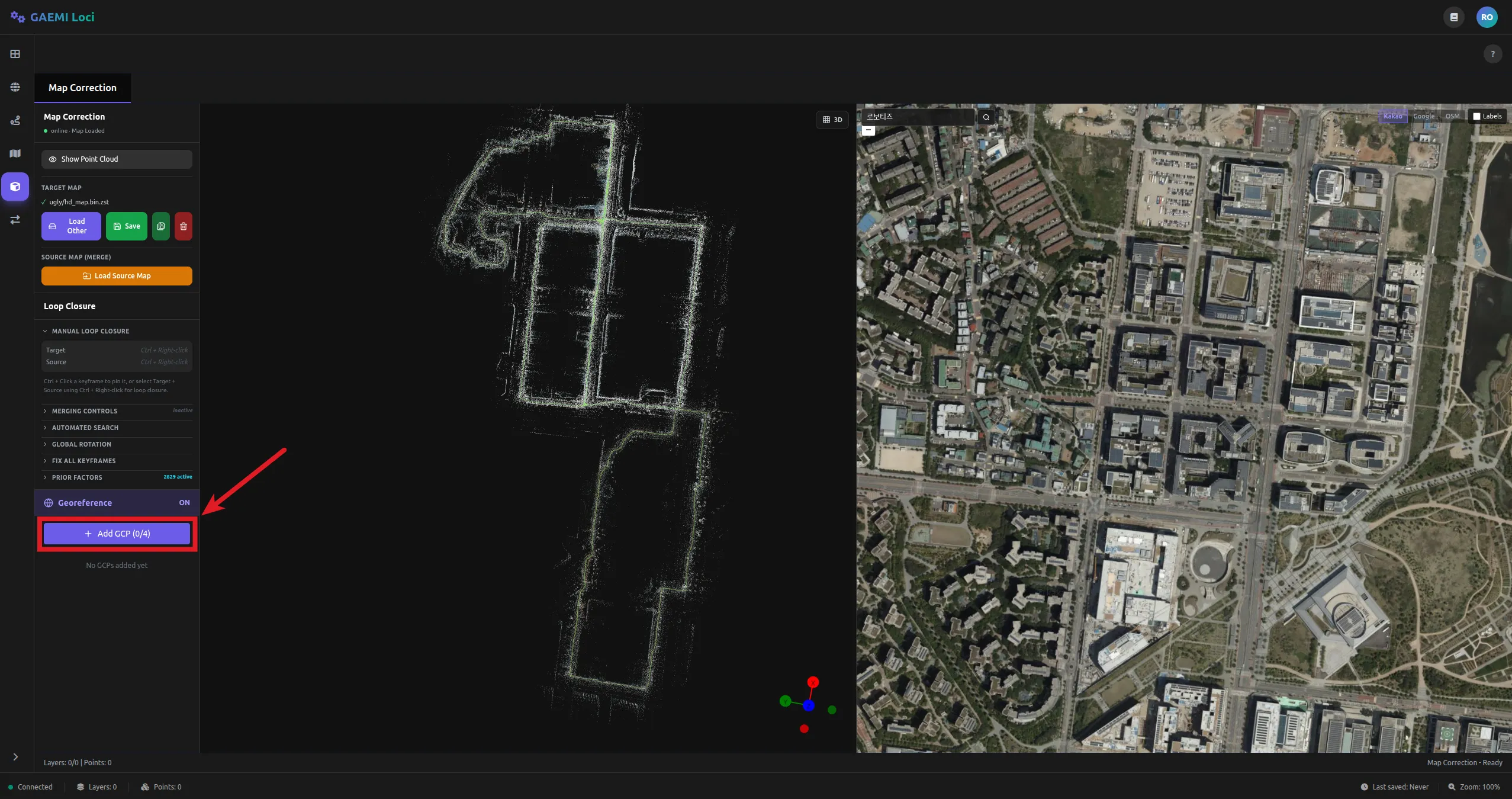
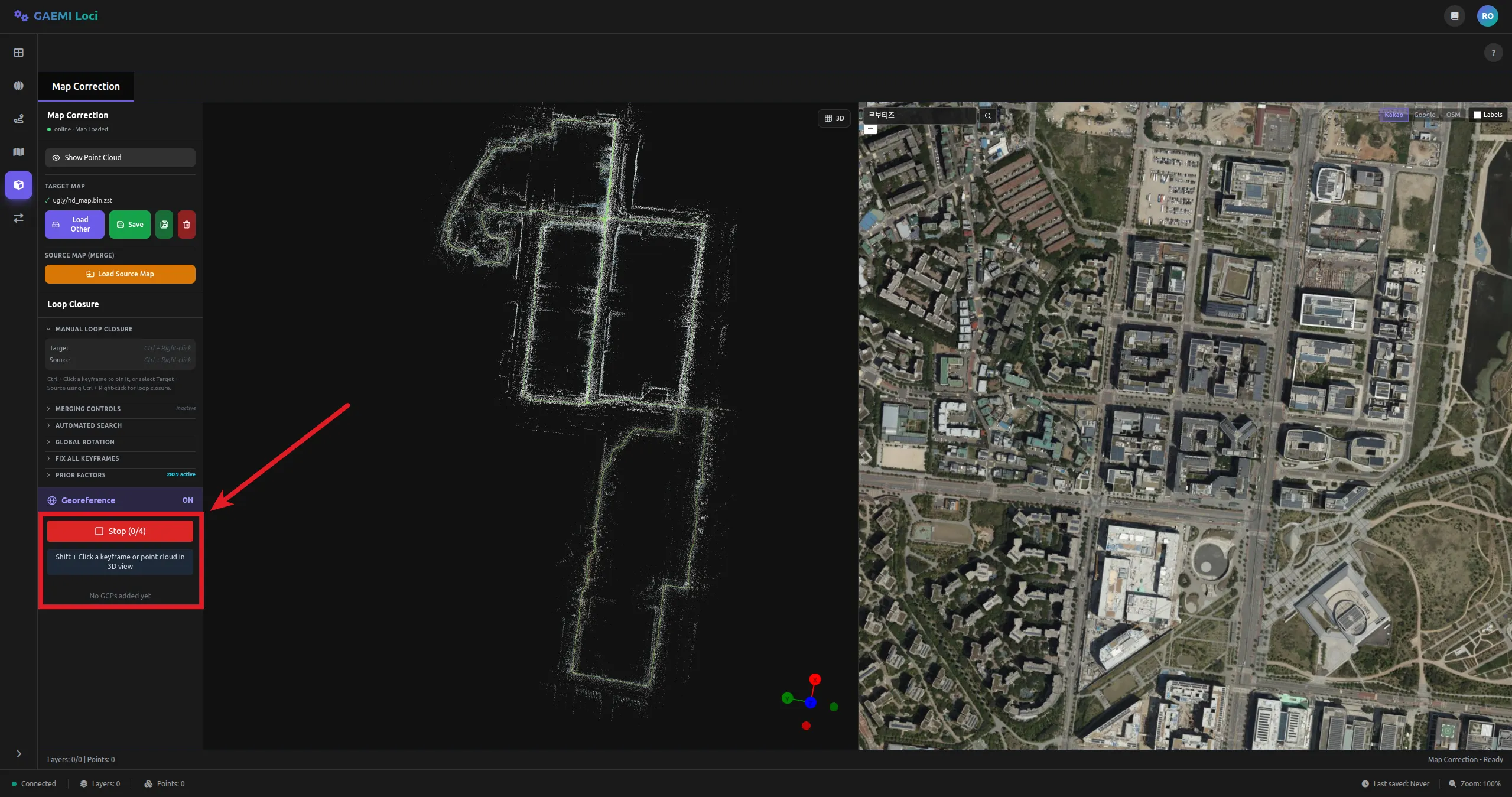
- The button displays the current number of GCPs:
-
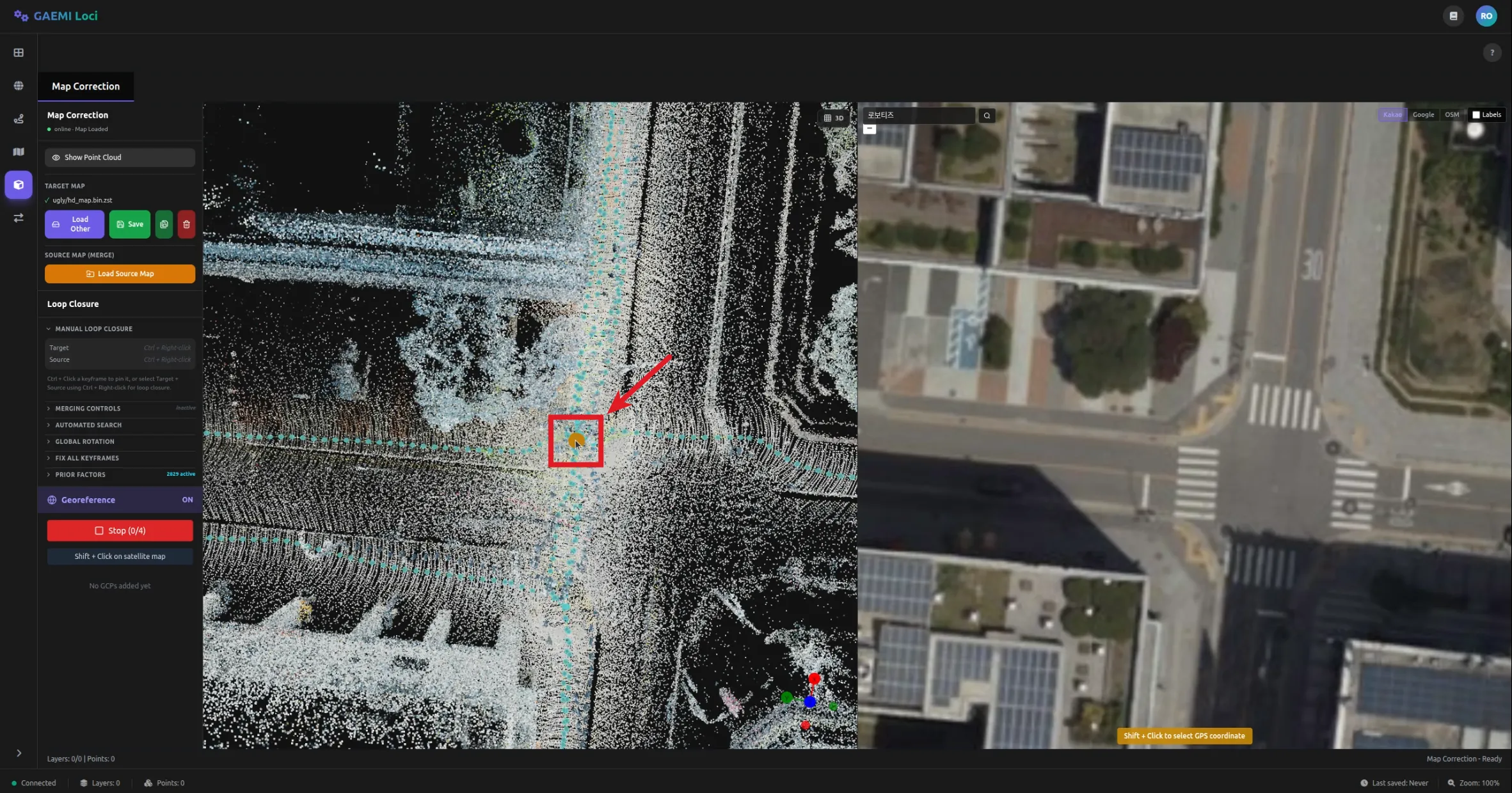
In the 3D viewport, Shift + left-click to select a ground control point on the point cloud.
- The X, Y, Z coordinates of the clicked point are populated automatically.
- Choose clearly identifiable locations such as building corners, road edges, or distinctive structures.
-
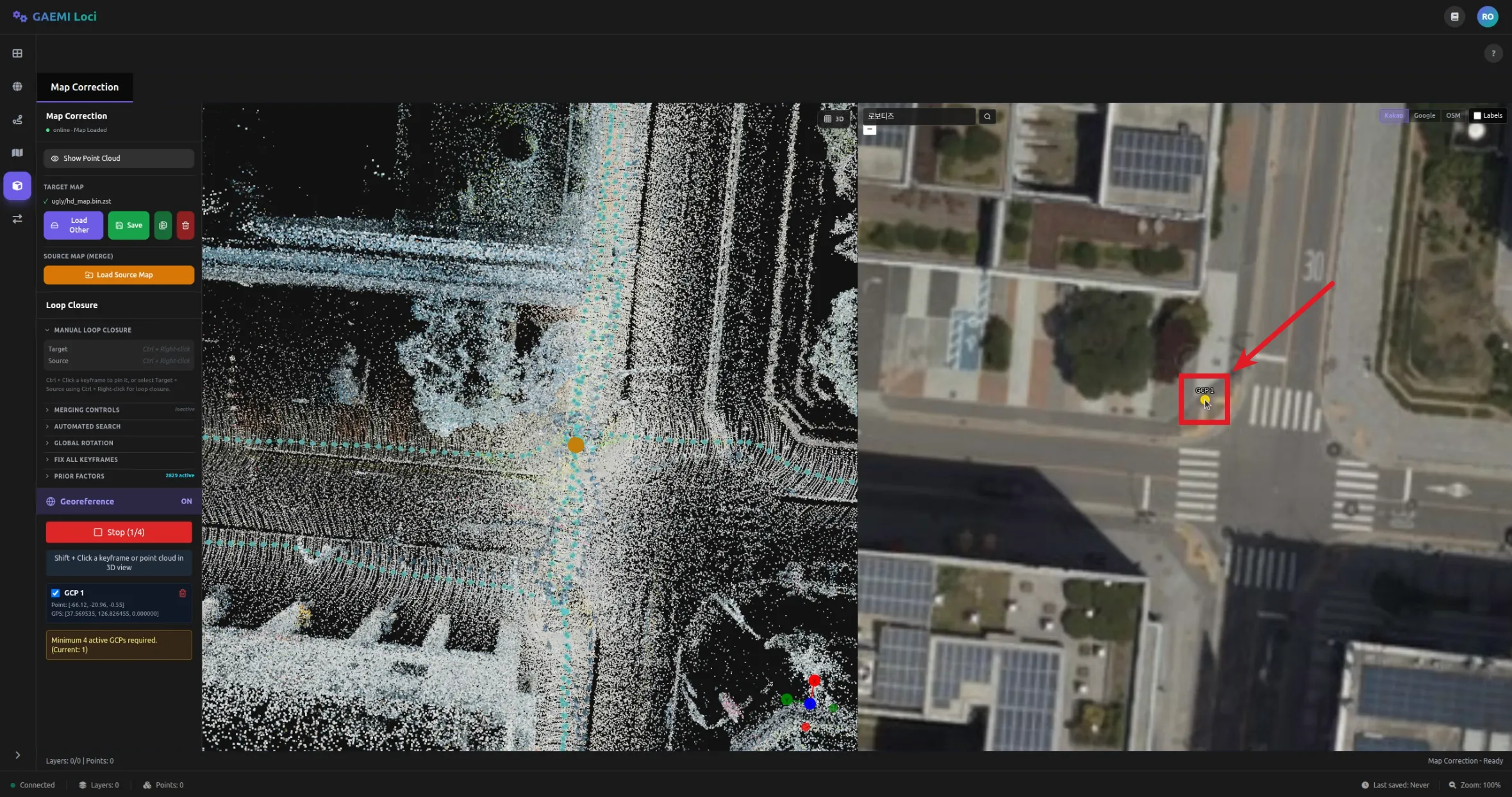
On the right-side satellite map, Shift + left-click the same location.
- The latitude (Lat) and longitude (Lon) of the clicked position are populated automatically.
- The GCP is confirmed and added to the list.
-
Repeat steps 1-3 to add at least 4 GCPs.
-
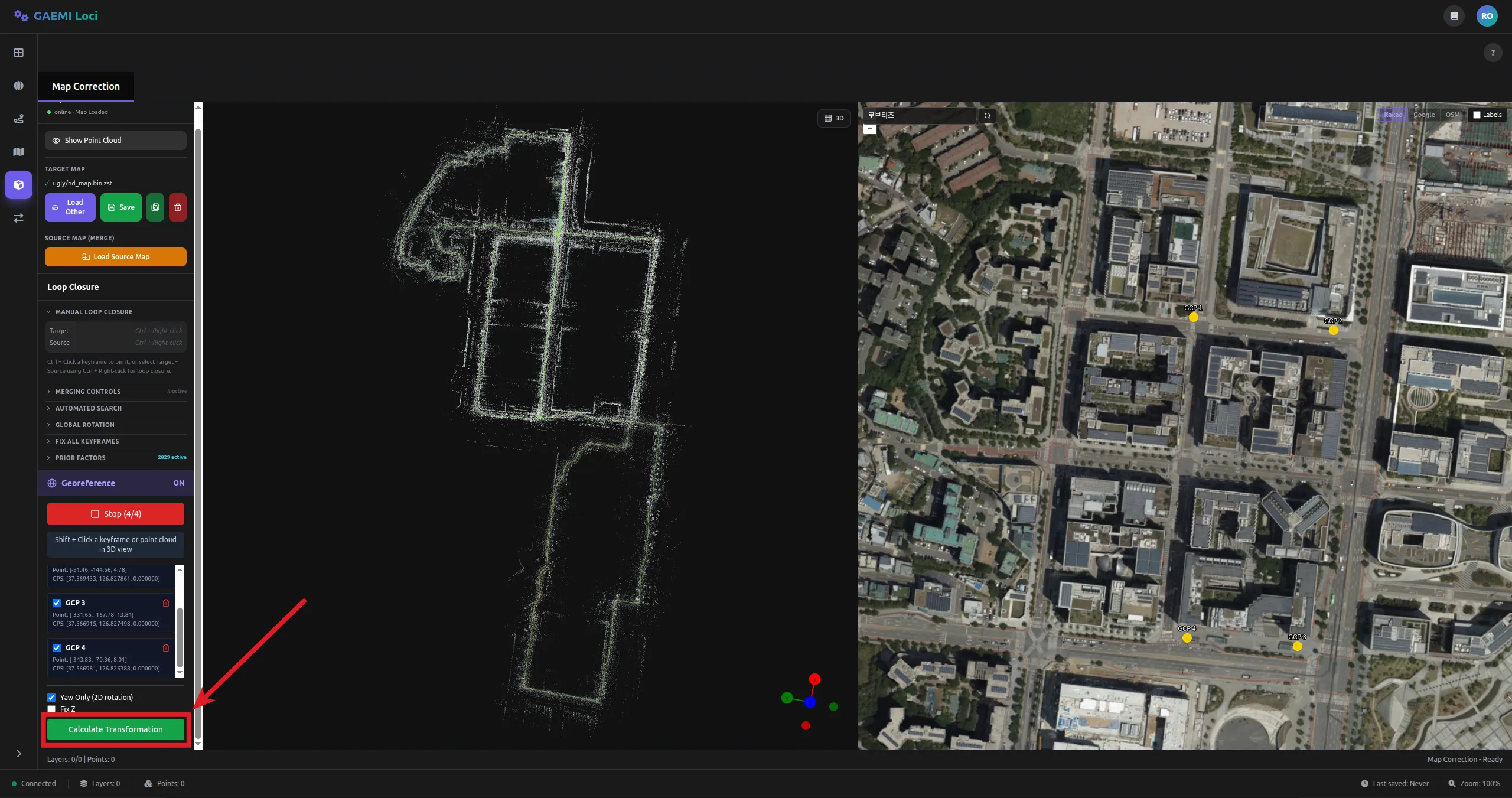
Click the Calculate Transformation button to run the transformation calculation.
- Transformation options: Yaw Only (2D rotation) — restricts rotation to the horizontal plane / Fix Z — locks the height translation.
- While calculating, the button changes to Calculating….
-
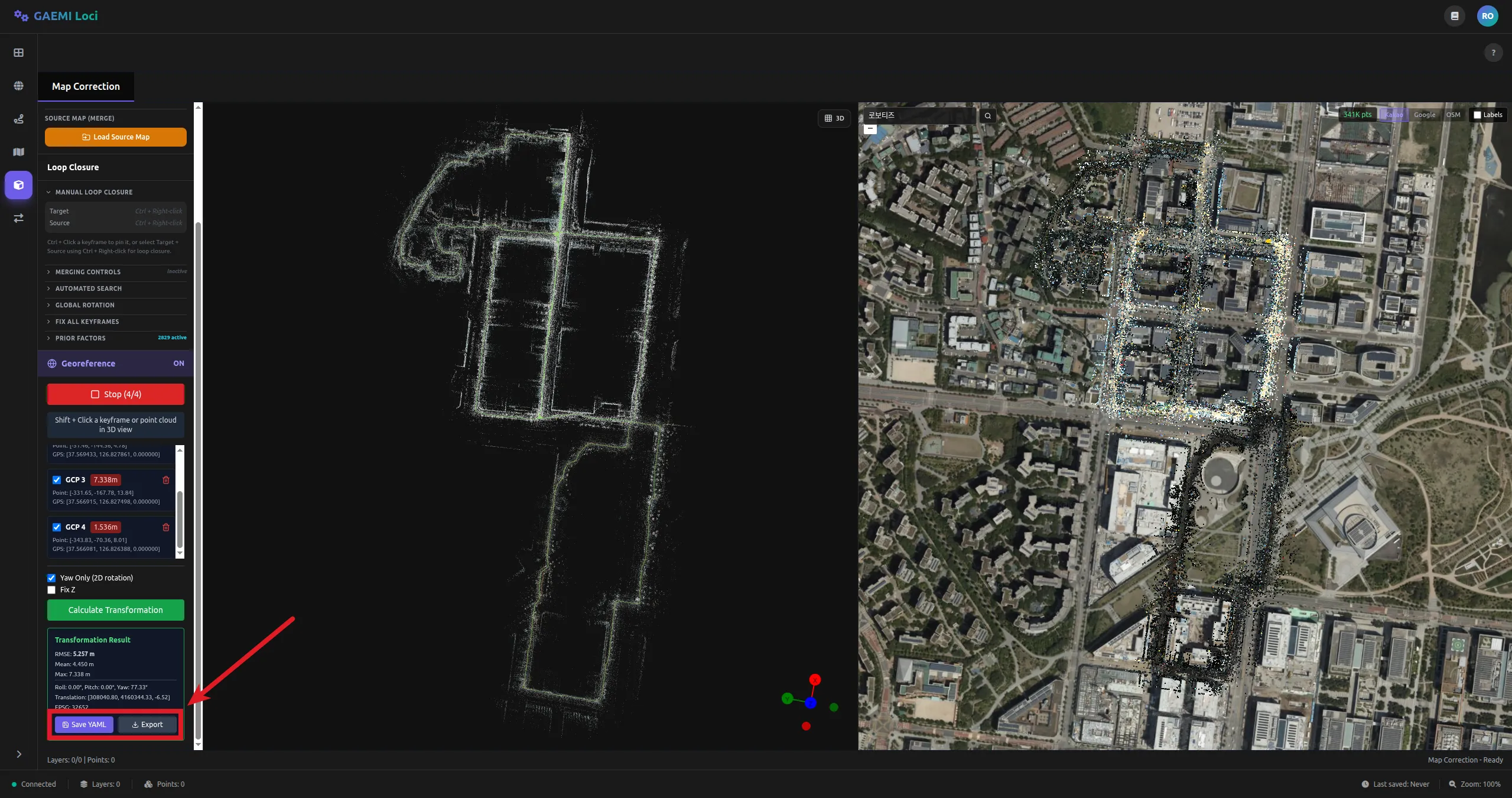
Review the result and save using the Save YAML or Export button.
Pin Keyframe
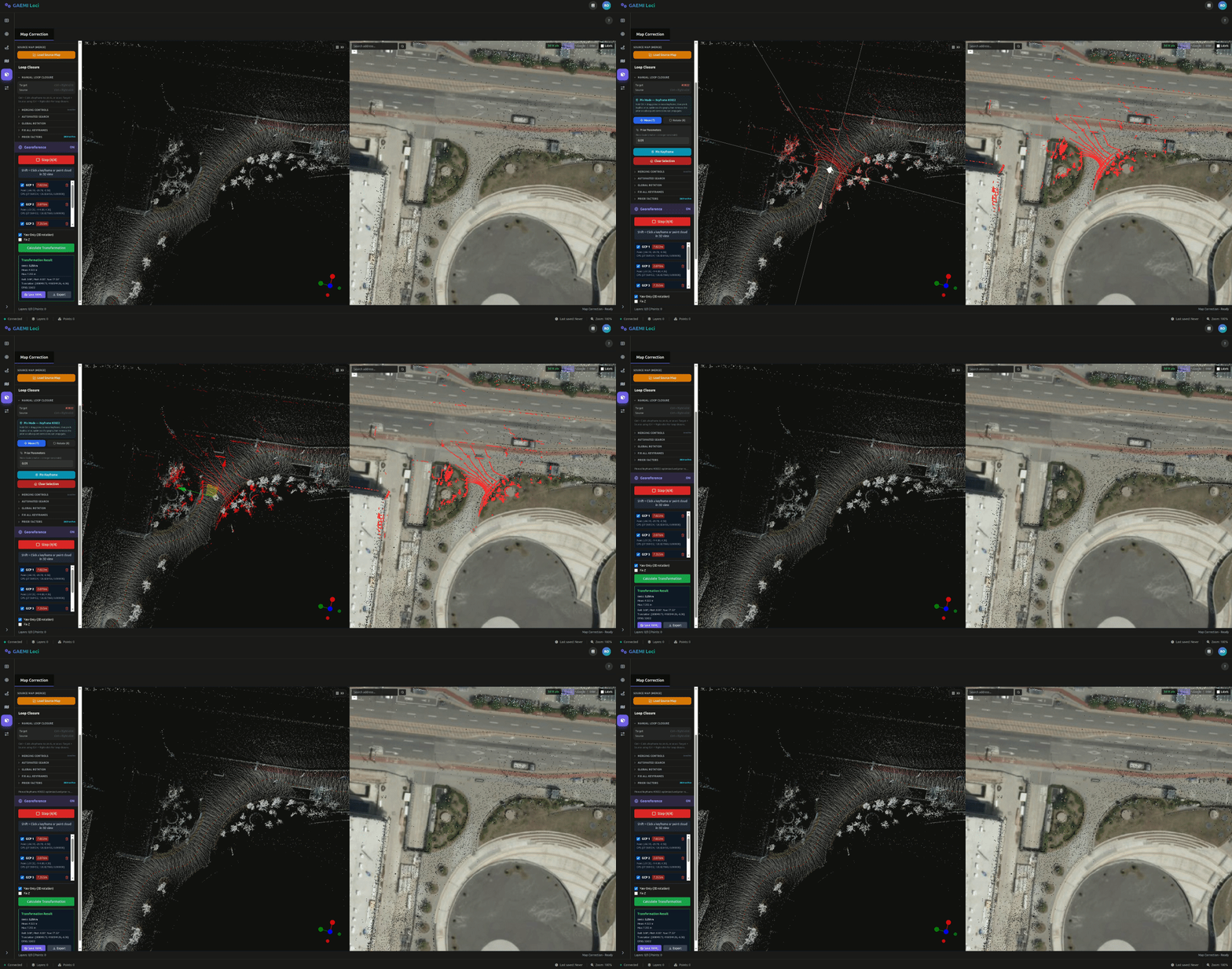
Even after aligning the entire map to the GPS coordinate system through GCP georeferencing, structural errors inside the SLAM map can leave certain segments still misaligned with the satellite map. Pin Keyframe corrects these local misalignments on a per-keyframe basis.
When you reference the satellite map and move a misaligned keyframe to its correct position, the following three steps run automatically:
- Add a Prior Factor at the new location.
- Run graph optimization — the correction propagates to surrounding keyframes.
- Automatically remove the Prior Factor — preventing excessive constraints during subsequent corrections.
This lets the correction at that point naturally propagate to adjacent areas, while keeping previous pins from lingering as constraints when you correct other locations later.
How to Use
After identifying a misaligned segment on the satellite map, select the relevant keyframe in the 3D viewport with Ctrl + left-click and drag it to the correct position. This is useful for fine-tuning individual skewed areas rather than the entire map.
Typical Workflow
[Georeferencing workflow]1. [Add GCP] → enter GCP-adding mode2. Shift + left-click in the 3D viewport → select a ground control point on the point cloud3. Shift + left-click on the satellite map → select the GPS coordinate of the same location4. Repeat 1-3 to add at least 4 GCPs5. [Calculate Transformation] → run the transformation calculation6. Review the result and save with [Save YAML] or [Export]7. Identify misaligned segments against the satellite map → correct keyframes with Ctrl + left-click (Pin Keyframe)8. Repeat step 7 for each segment that needs adjustmentSaving the Transformation Result
| Button | Function |
|---|---|
| Save YAML | Saves the YAML to the service-area root and to the hd_map/georeferenced/ directory |
| Export | Downloads the YAML file to the local PC |
The saved YAML (map_meta_data.yaml) contains the EPSG code, Yaw, and Translation information. It loads automatically the next time the map is opened.